
Guide
Getting started with HatChat
Before you start
Have these ready:
- A WhatsApp Business number connected through Meta's official WhatsApp Business API. We help you with this during onboarding.
- An AI provider API key from OpenAI, Anthropic (Claude) or Google (Gemini). You pay the provider directly, usually a few sen per conversation.
- Your business information: what you sell, prices you're happy for the AI to quote, branches, opening hours and your FAQs. PDFs and Word files are fine.
- Your team's email addresses, if other people will follow up leads.
1. Connect your channels
Go to Settings → Inboxes → Add inbox and pick WhatsApp, Instagram, Messenger, web chat, email and more. Each channel becomes an inbox.
Then open the inbox and set two things:
- Settings tab → Conversation Routing → Reopen same conversation. When a customer writes again, their previous chat reopens instead of starting a new one, so the AI keeps the full history and the same persona.
- Business Hours tab → timezone. New inboxes start in Malaysian time. To change it, switch on business availability; the timezone picker appears below.
2. Create your AI agent
Go to Settings → AI Agents → New AI agent and start from a template: Front desk, Sales qualifier, Customer support or Appointment booker. You can change everything afterwards.
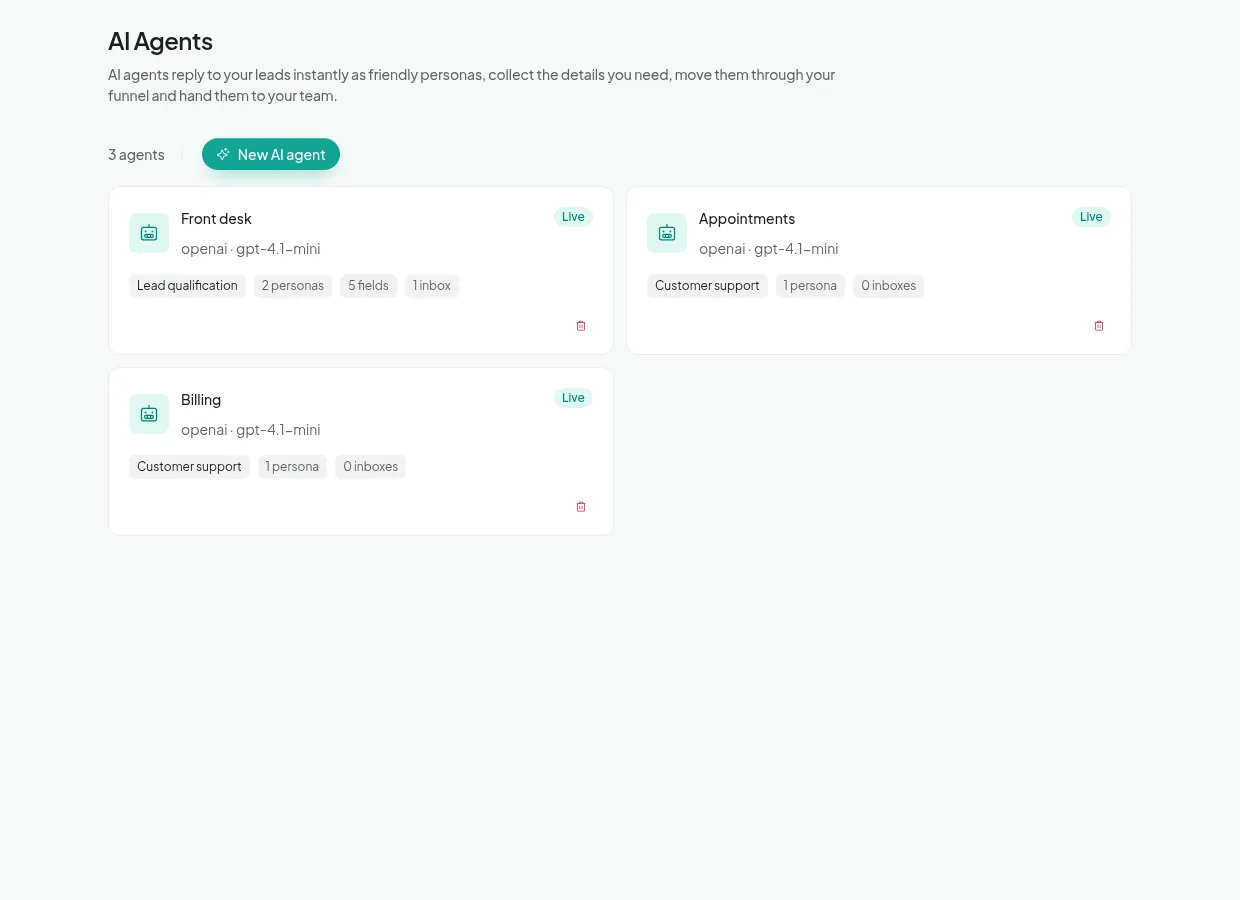
On the General tab:
- Agent name: name it after its job, for example Front desk, Claims or Sales. Specialists introduce themselves with this name.
- Agent type: Lead qualification collects details and moves leads through the funnel; Customer support answers questions and resolves.
- Inboxes: the channels where this agent takes the first message. Each inbox has one front desk agent.
- AI model: choose the provider, paste your API key and press Test connection.
Switch the agent Live (top right) when you're ready, and press Save changes after every change.
3. Personas and instructions
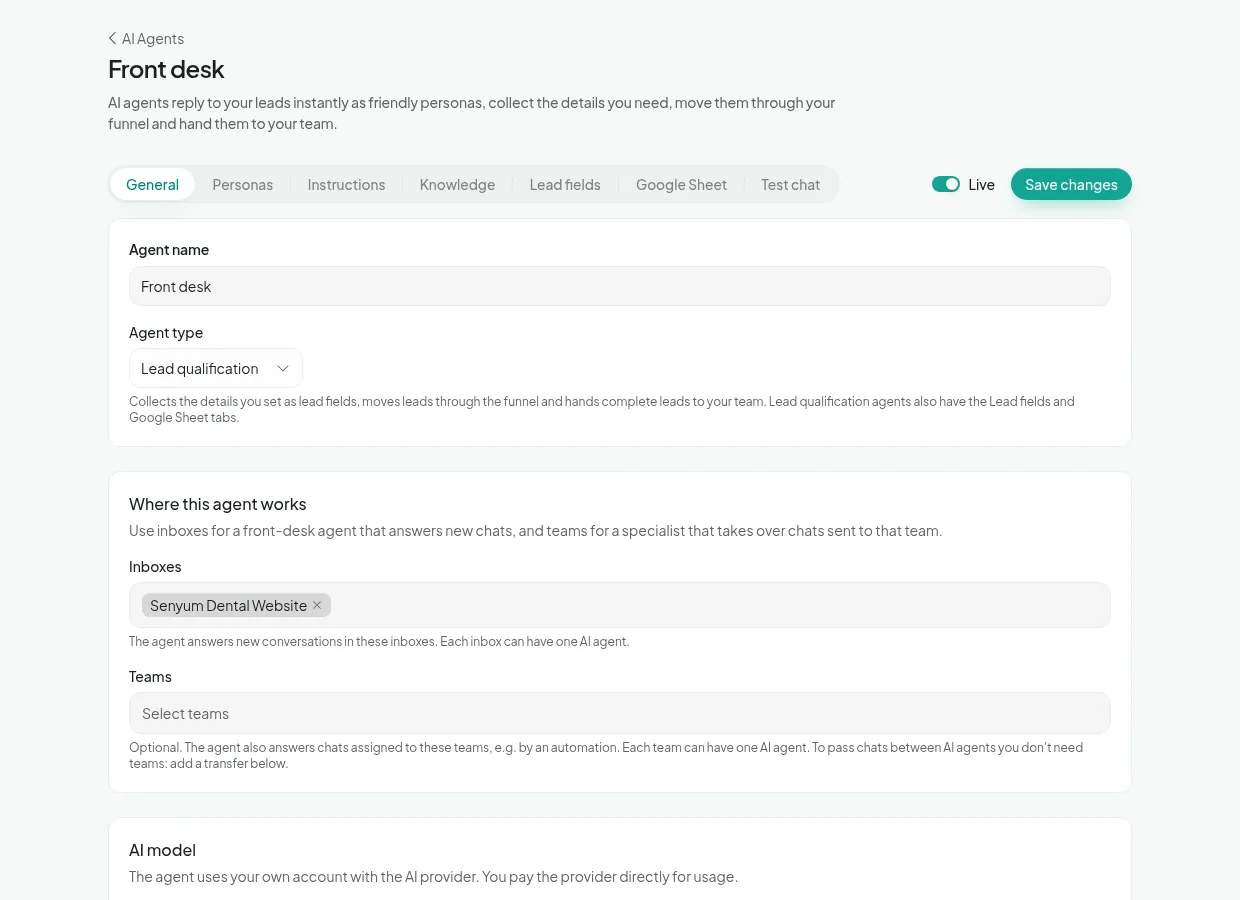
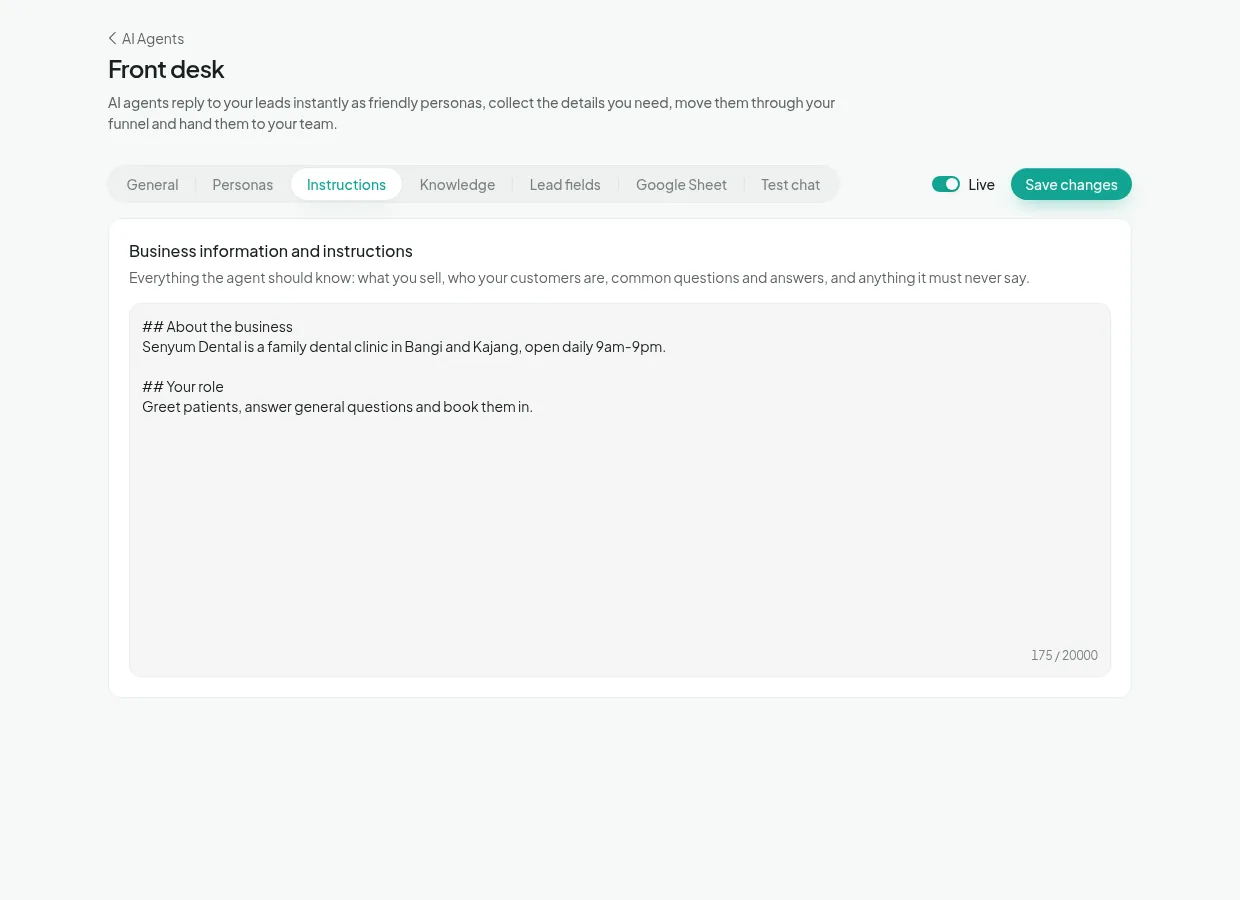
Personas are the people your customers talk to. Add two or three with a name, a tone and an example greeting. Each new chat gets one at random and keeps it from hello to goodbye, so it feels like a team of real reps.
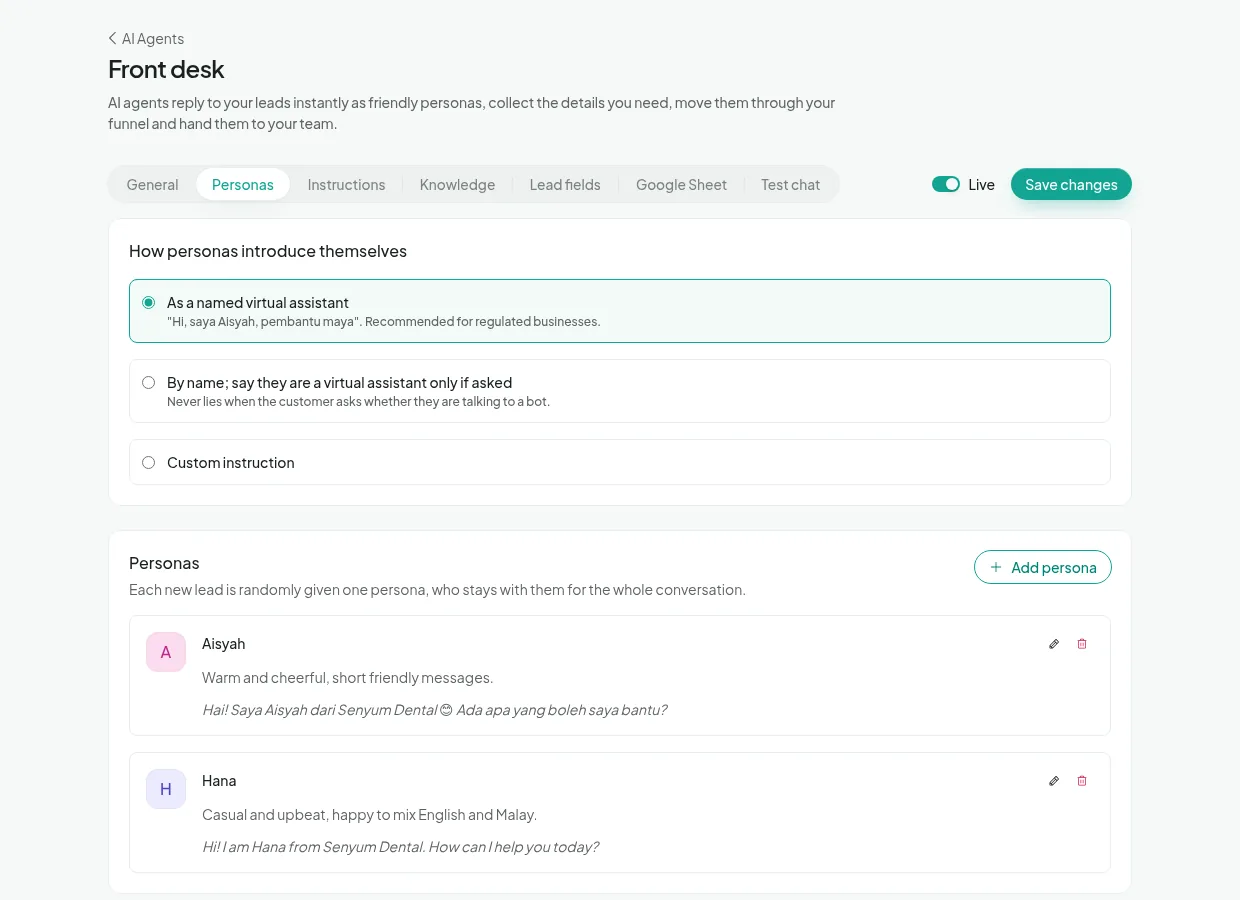
Instructions describe your business and the agent's job. Write them like you'd brief a new staff member: what you offer, what to say about prices, what never to promise. The AI replies in the customer's language (Malay, English or a mix) on its own.
4. Details to collect
On the Lead fields tab (lead agents only), list what the AI should ask for: name, treatment, branch, preferred date, budget, anything. Mark the ones it must have as Required. Answers are checked, tidied (for example "ali@gmail" becomes [email protected]) and saved on the contact.
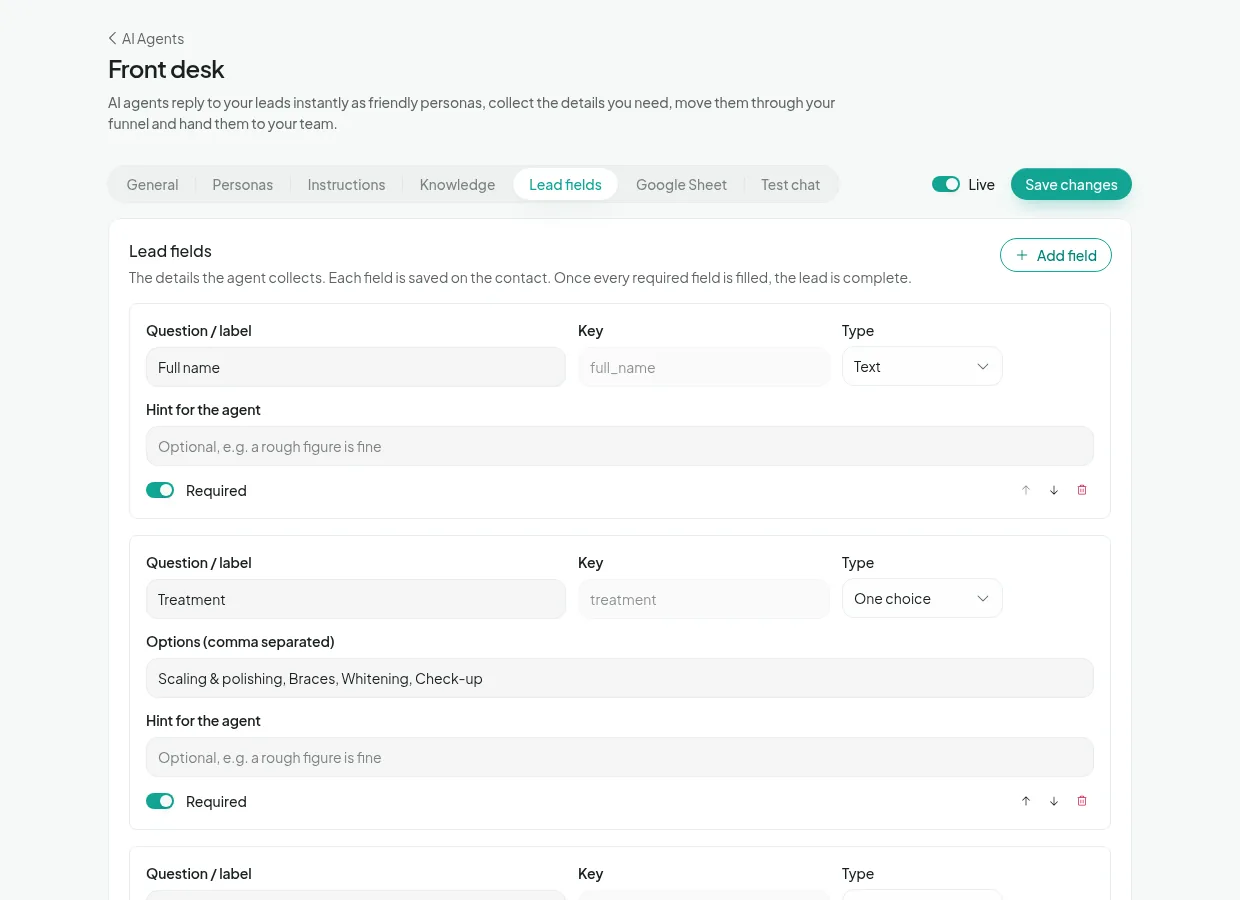
The funnel moves on its own: New → Qualifying as answers come in → Complete once every required detail is in.
5. Knowledge
On the Knowledge tab, upload what the AI should answer from (PDF, Word or text):
- Company files (all AI agents): company profile, branches, opening hours, contacts. Upload once and every agent uses them.
- This agent's files: only for this agent, for example the claims procedure for a Claims agent, or price lists for Sales.
- Help Center portals: if you publish FAQ articles in HatChat's Help Center, the agent answers from them and shares links.
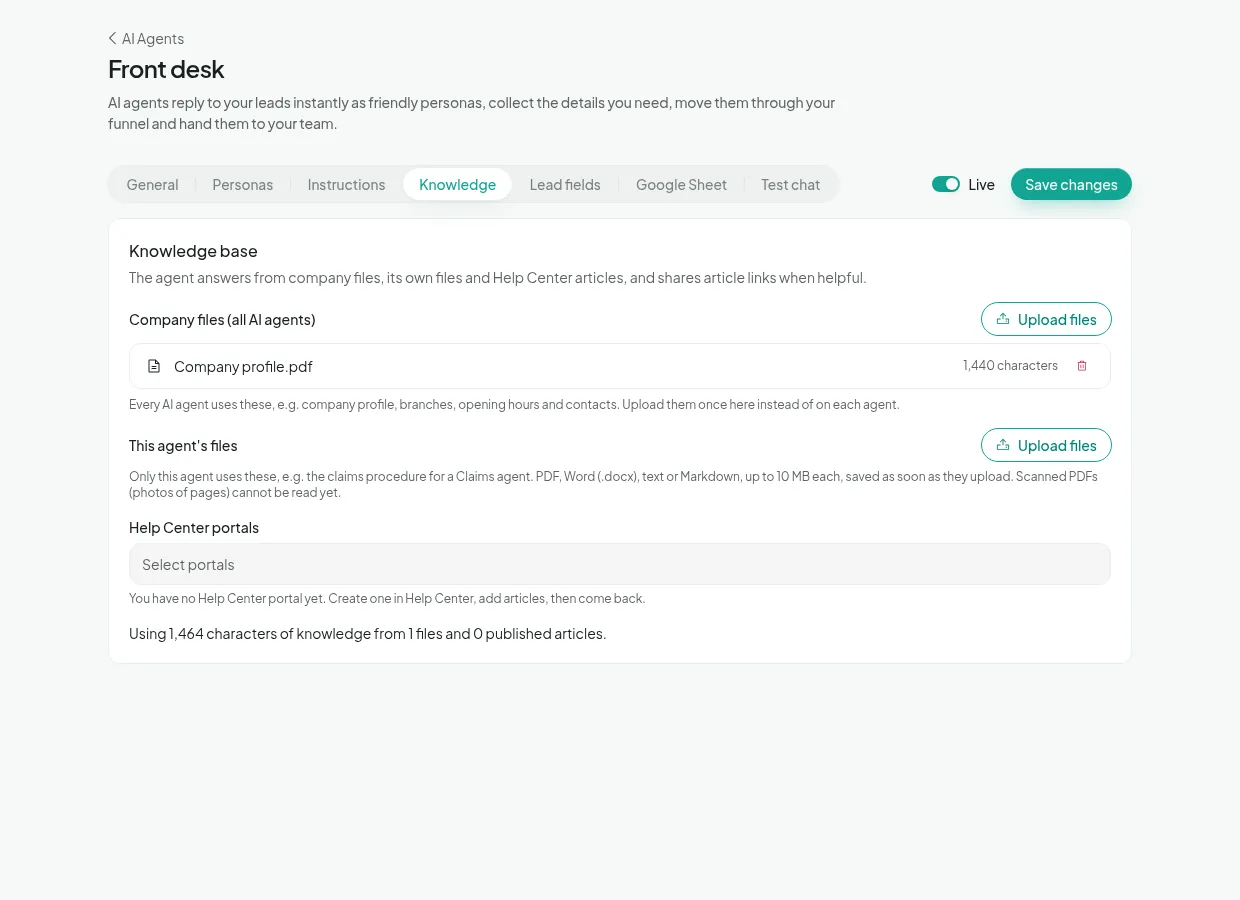
Scanned PDFs (photos of pages) can't be read yet. Use files with real text.
6. Behaviour and what happens next
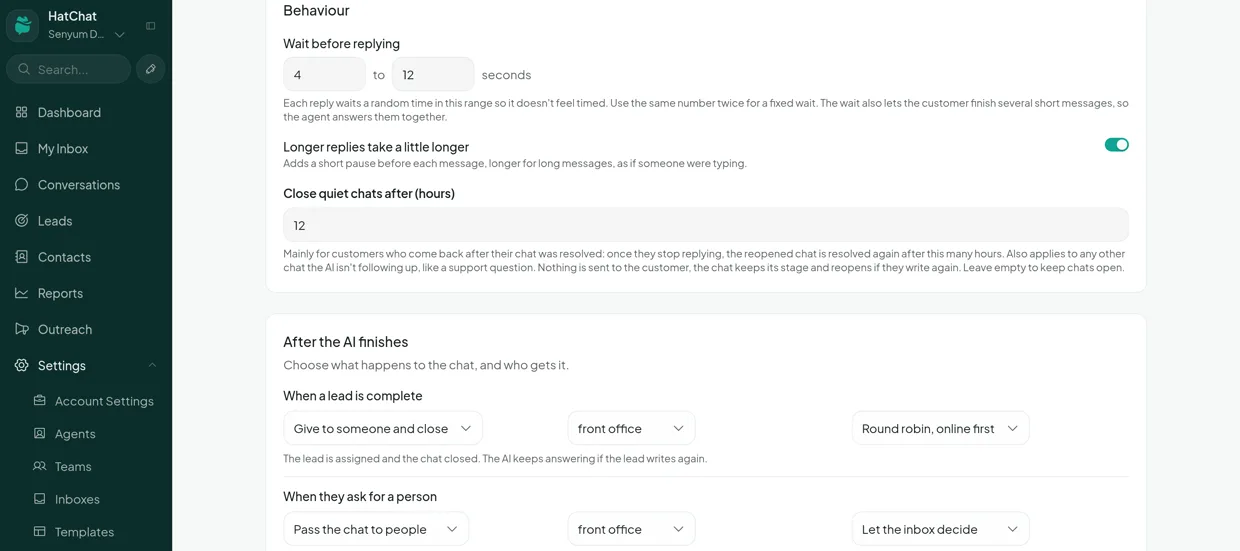
Back on the General tab, the Behaviour box decides how the agent sounds, and After the AI finishes decides where each chat goes next.
Wait before replying
Each reply waits a random time in your range, for example 4 to 12 seconds, so it never feels timed. It also lets customers finish typing several short messages so the AI answers them together. Keep Longer replies take a little longer on for a natural typing pause.
Close quiet chats after
When a customer simply stops replying, the chat is resolved quietly after this many hours (12 by default) and keeps its stage. Nothing is sent to the customer, and the chat reopens if they write again. This keeps your Dashboard showing only live conversations.
After the AI finishes
One row for each moment the AI stops being the one in charge. For each row you choose what happens, who gets it and how it is shared.
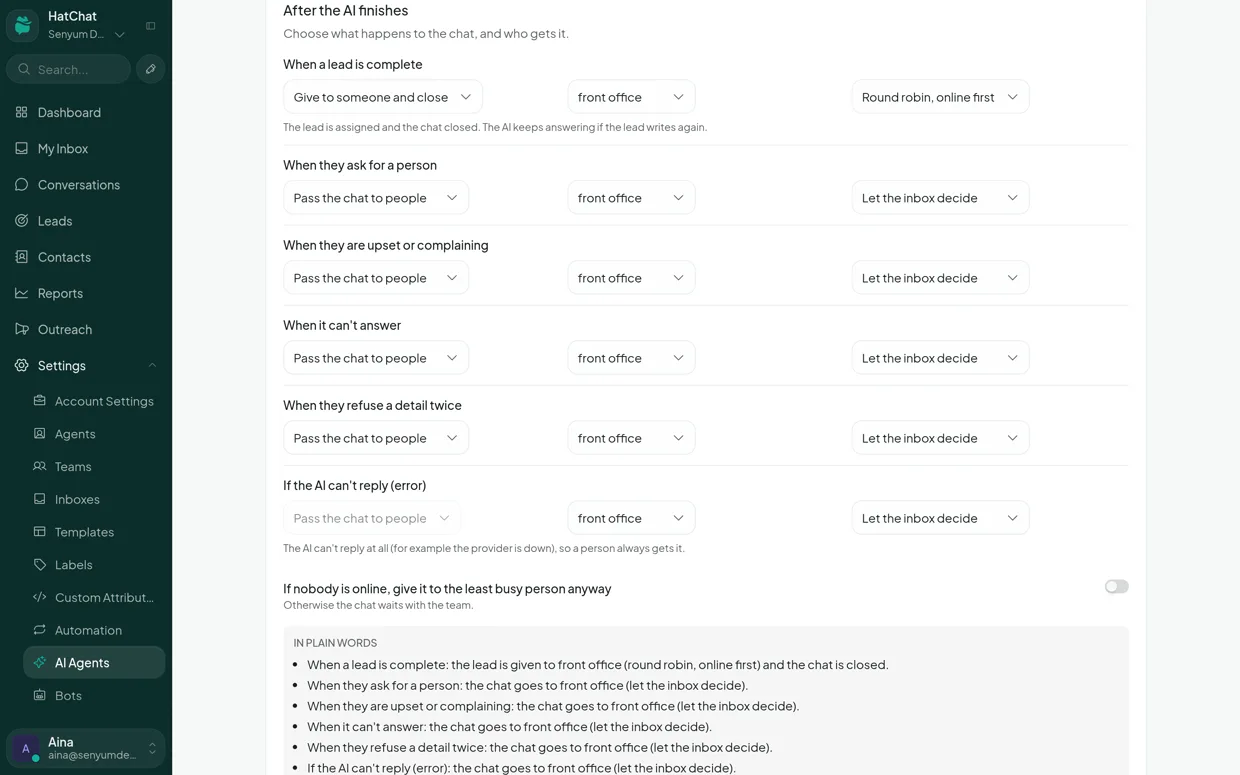
| When | What it means |
|---|---|
| When a lead is complete | Every detail you asked for has been collected |
| When they ask for a person | The customer wants a human |
| When they are upset or complaining | The customer is unhappy or suspects a scam |
| When it can't answer | The question is outside its knowledge |
| When they refuse a detail twice | The customer won't give a required detail |
| If the AI can't reply (error) | The AI is unavailable, so a person always gets the chat |
What happens can be one of four things:
| Option | The chat | Given to a person | AI answers if the lead writes again |
|---|---|---|---|
| Pass the chat to people | Stays open | Yes | No, the person owns it |
| Give to someone and close | Resolved | Yes | Yes |
| Close the chat | Resolved | No | Yes |
| Keep chatting with the AI | Stays with the AI | No | Yes |
If your team calls leads rather than chatting in HatChat, choose Give to someone and close for completed leads: each lead goes to someone, shows on their Leads page, and the AI still answers follow-up questions like "when will someone call me?".
Who gets it is the chat's current team, a team you choose, or one named person. How it is shared decides who in that team:
- Round robin, online first: one at a time among people who are online, taking turns.
- Fewest open chats: the online person with the least on their plate.
- Let the inbox decide: the inbox's own automatic assignment picks the person.
If nobody is online, the chat waits with the team. Switch on If nobody is online, give it to the least busy person anyway if you would rather it always lands with someone. The In plain words box under the rows reads your choices back as sentences so you can check them at a glance.
7. Follow-ups
Many leads stop halfway through. With Follow-ups on, the AI nudges them in the persona's voice, picking up from the last unanswered question.
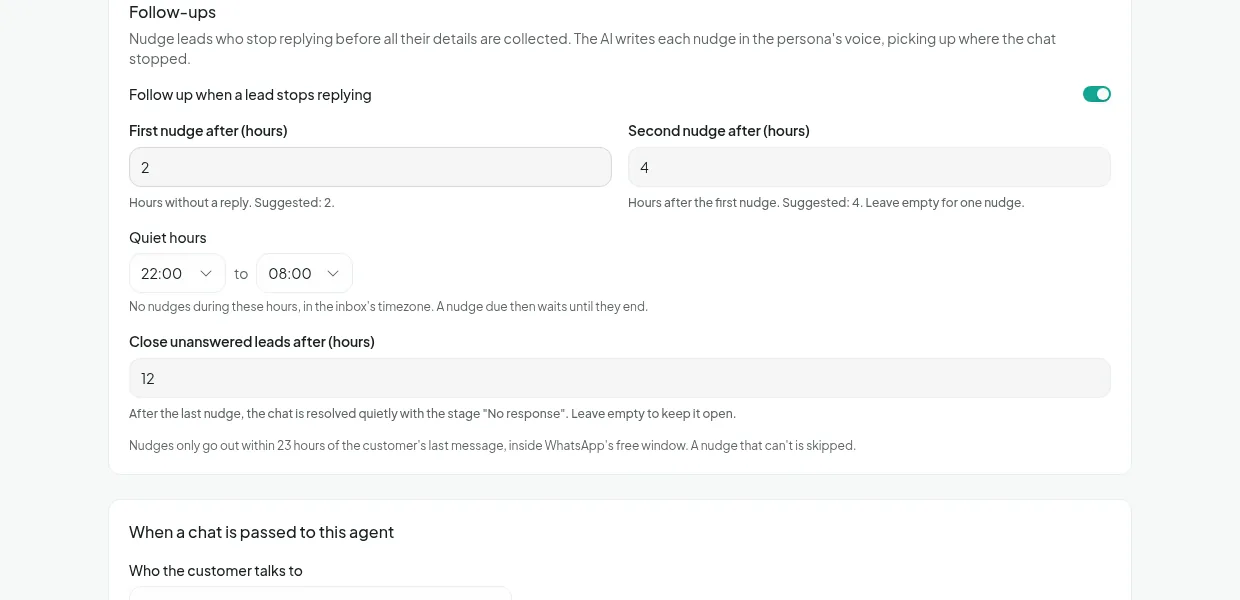
For example, if the customer's last message was at 9pm:
| Step | Due | Sent |
|---|---|---|
| First nudge (2 hours) | 11pm, during quiet hours | 8am, when quiet hours end |
| Second nudge (4 hours later) | 12pm | 12pm |
| Close as "No response" (12 hours later) | 12am | Silently, nothing is sent |
Nudges only go out within 23 hours of the customer's last message, inside WhatsApp's free 24-hour window, so they never cost extra. Everything stops as soon as the customer replies or the lead completes.
8. Specialists and transfers
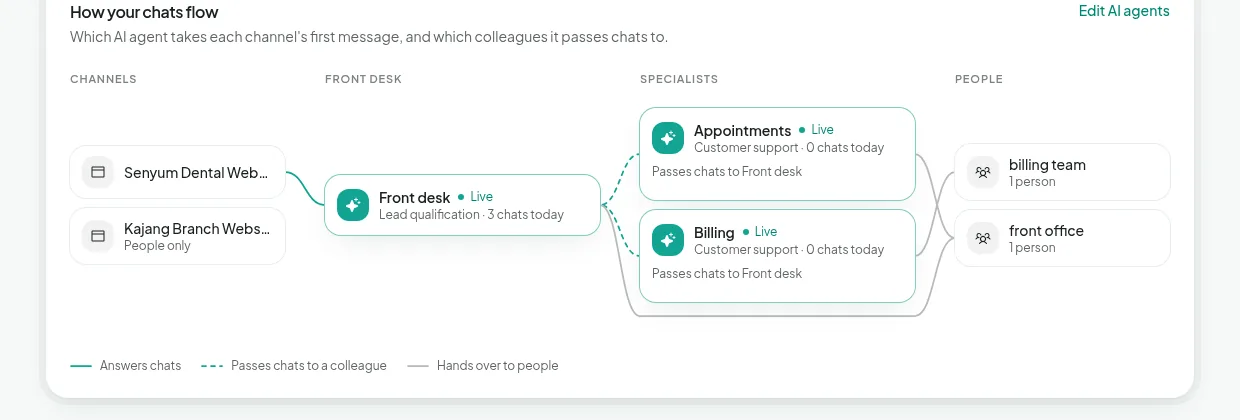
Bigger businesses can work like a real organisation: a front desk agent takes every first message and passes chats to specialist agents, such as Claims, Billing or Appointments, each with its own personas and knowledge.
- Create the specialist agent and leave its Inboxes empty. Only the front desk sits on the channel.
- On the front desk's Transfers to colleagues, add the specialist and describe when to transfer, for example "wants to change or cancel an appointment".
- Give the specialist a transfer back to the front desk for anything outside its job.
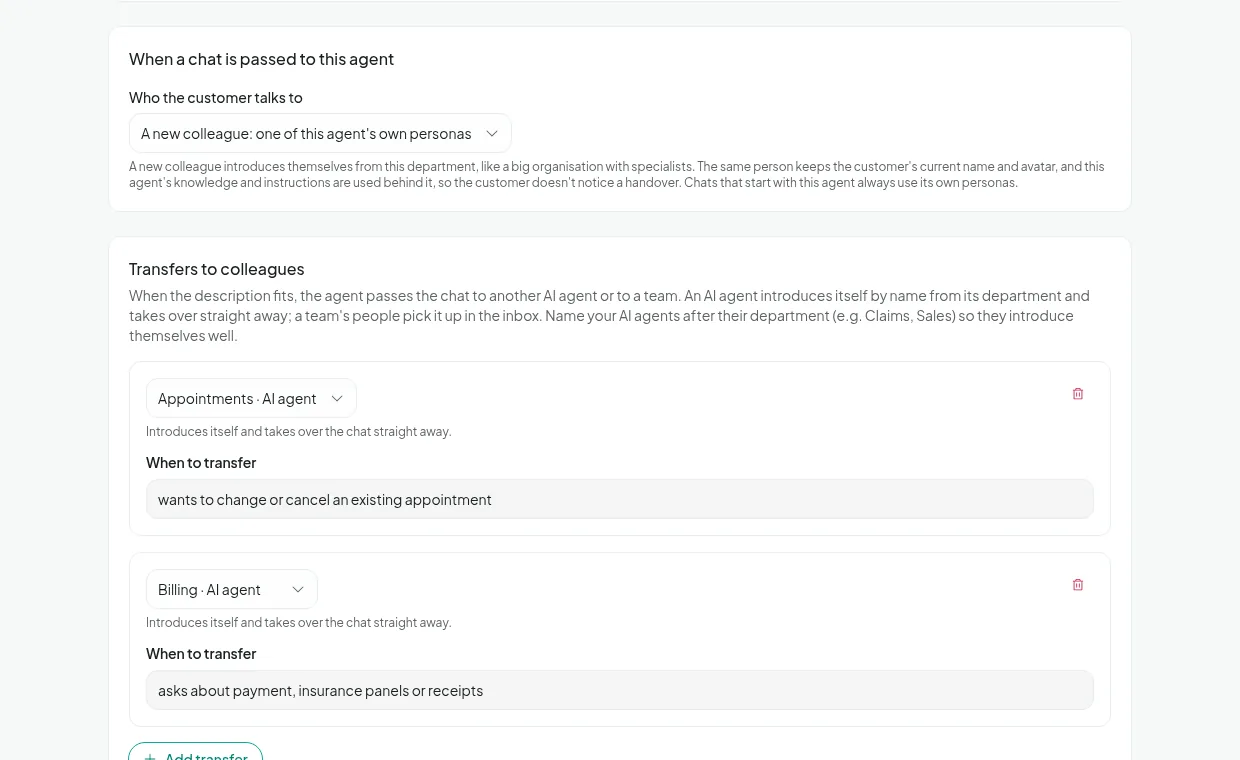
Under When a chat is passed to this agent, choose who the customer talks to:
- A new colleague: the specialist introduces itself by name from its department ("Hi, I'm Farid from Appointments").
- The same person: the customer keeps talking to the same name and never notices a hand-over.
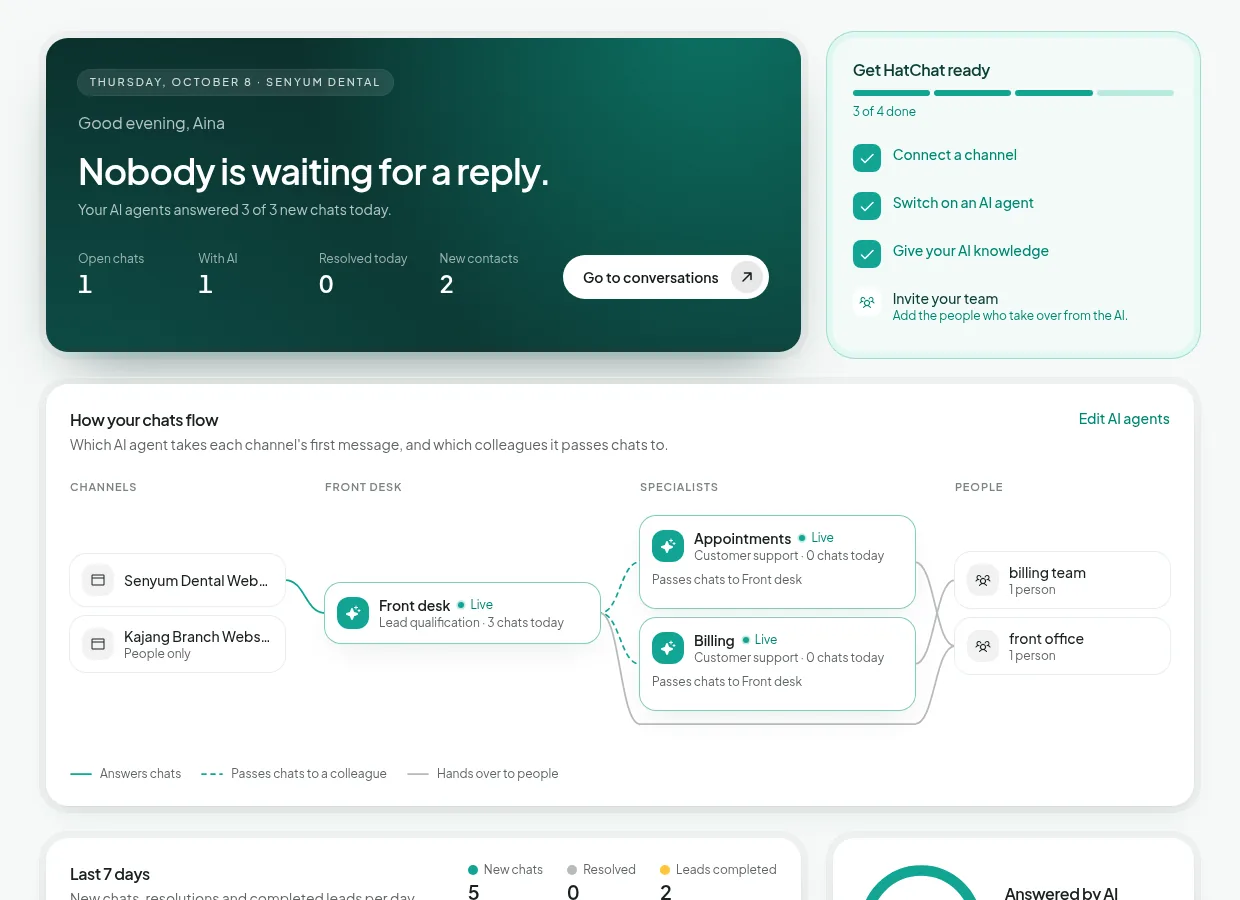
The Dashboard draws your setup so you can check it at a glance:
9. Your team
- Invite people in Settings → Agents. They get an email to set a password.
- Put them in a team in Settings → Teams, for example call team, and choose it under After the AI finishes on the agent.
- Add them to the inbox under Settings → Inboxes → (inbox) → Collaborators. Keep Enable automatic conversation assignment on.
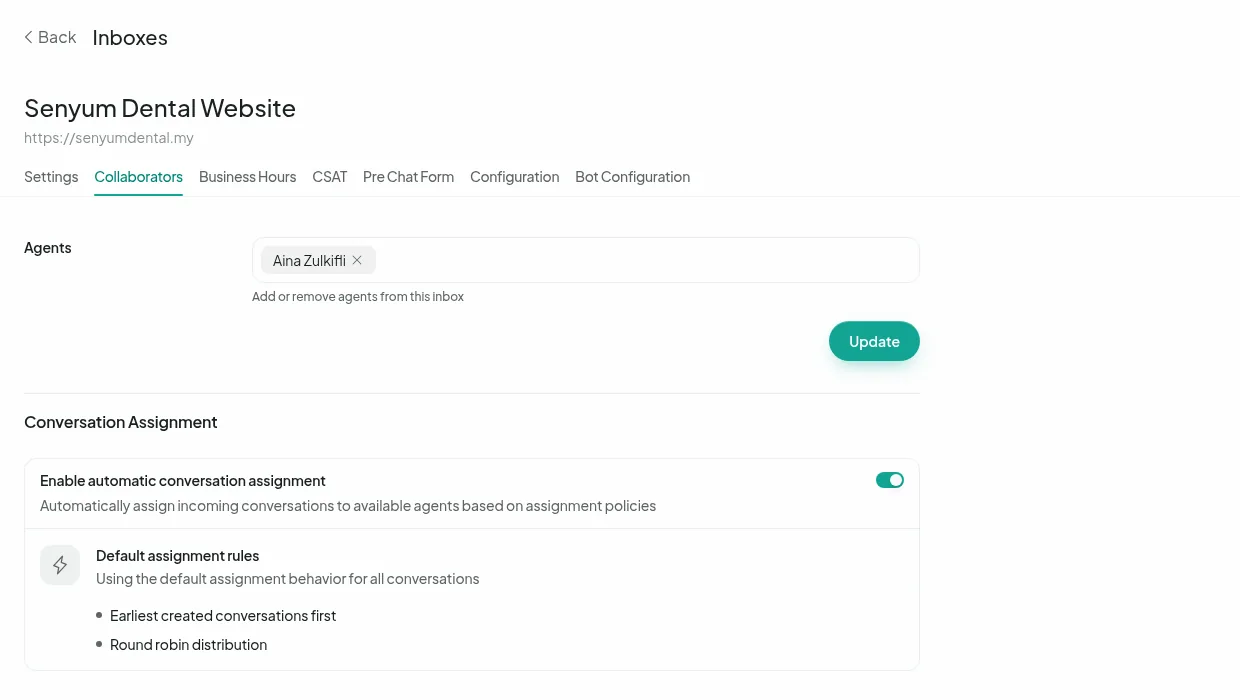
How leads are shared: by default, round-robin, one at a time, among people who are online (you can change this per situation under After the AI finishes). People who are offline are skipped. To stay online even when HatChat isn't open, each person clicks their name at the bottom left, sets Online and switches off Mark offline automatically.
Admins see every lead. Agents see the leads assigned to them.
10. Google Sheets
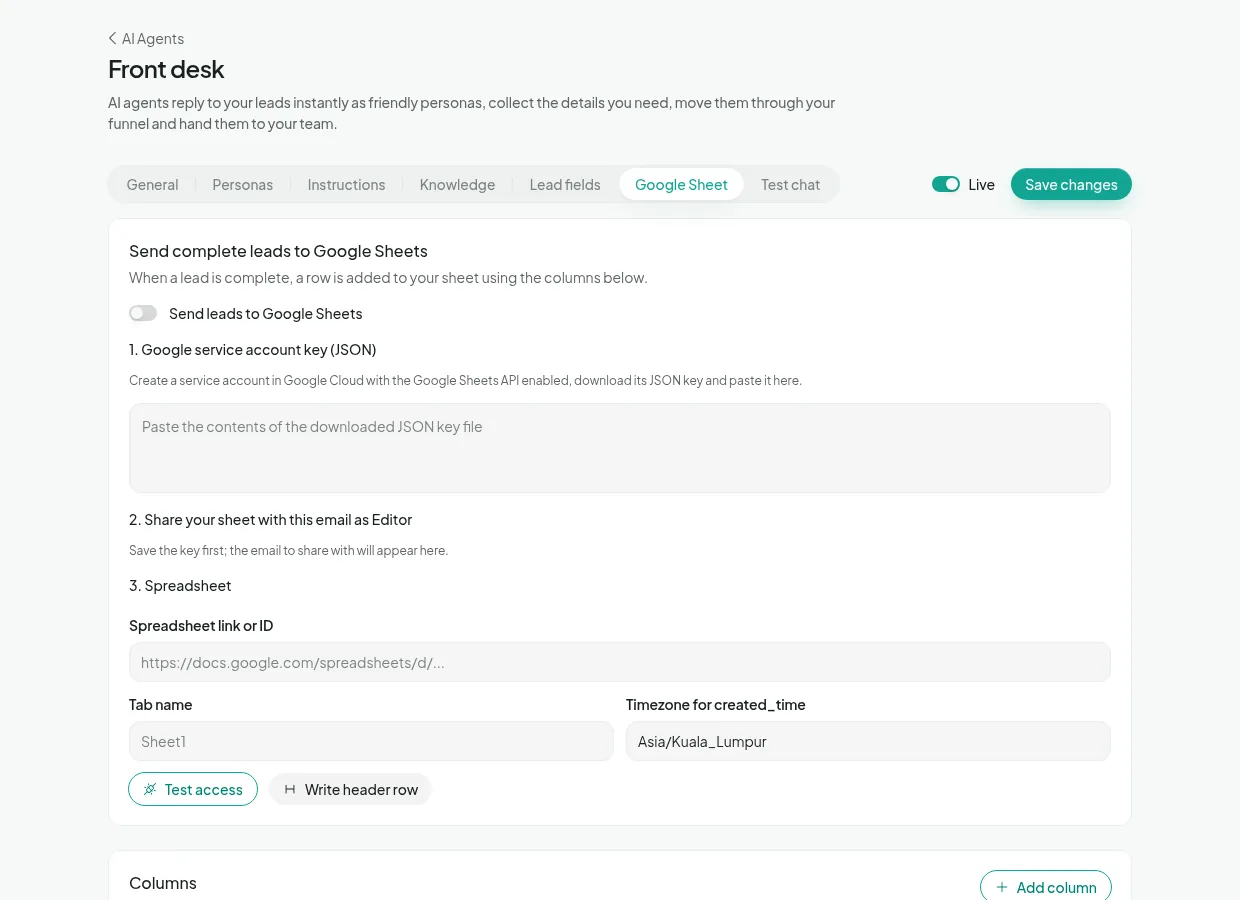
On the agent's Google Sheet tab, completed leads can be added to your sheet as a row, the moment they complete.
- In console.cloud.google.com, create a project and enable the Google Sheets API.
- Create a service account, then Keys → Add key → JSON. A file downloads. Treat it like a password.
- Paste the whole file into step 1 and press Save changes. An email address appears in step 2.
- In your Google Sheet, Share with that email as Editor.
- Paste the sheet link and tab name in step 3, then Test access.
- Add your columns (lead details, phone, name, persona, chat link, time), press Write header row, switch Send leads to Google Sheets on and save.
11. Test, then go live
The Test chat tab lets you talk to the agent as if you were a customer. Nothing is sent or saved. Try a normal lead, a question it should answer from your files, a request for a human and, if you have specialists, a question that should be transferred.
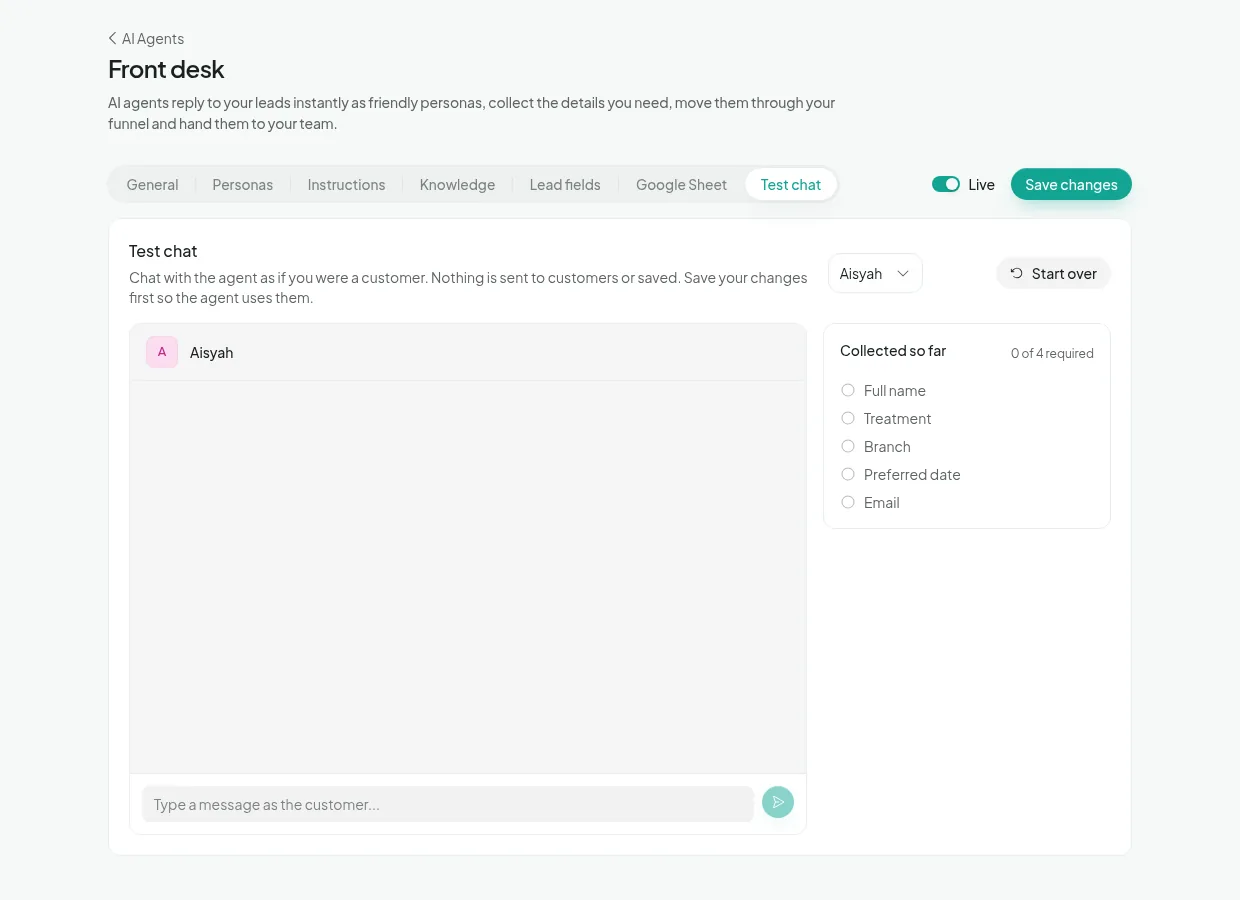
Then switch the agent Live and send a real message from a second phone.
Every day: Dashboard and Leads
The Dashboard shows who's waiting, how much the AI handled, your lead funnel and the flow map.
In Conversations, the tabs Open, With AI (pending), Resolved and All show which chats need a person and which the AI is still handling, and the list says when a filter is hiding chats.
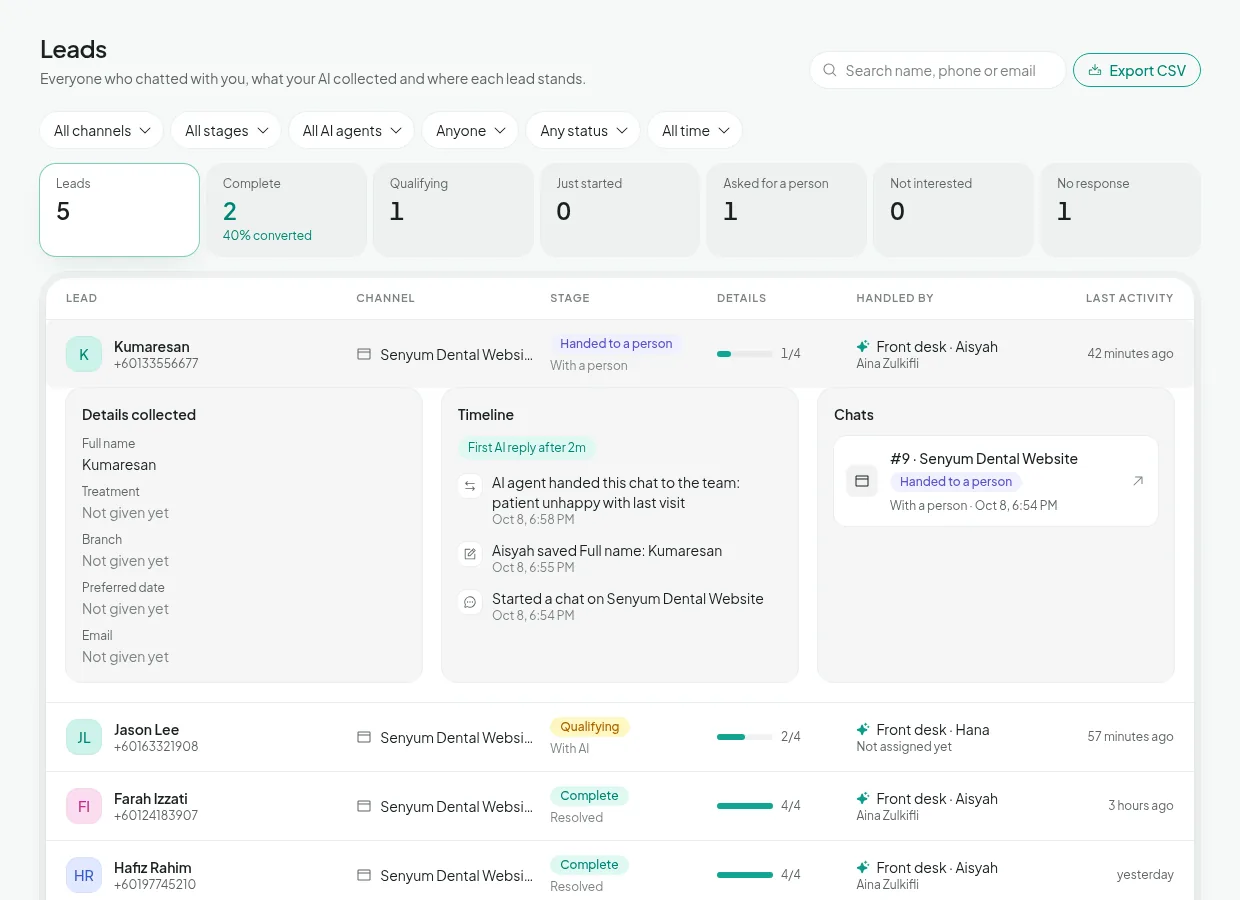
The Leads page is your CRM: one row per person with the channel, stage, details collected and who handled them. Click a lead to see every detail, a timeline of what happened and links to their chats. The cards on top show your conversion for whatever you filter, for example Instagram in the last 30 days. Export CSV downloads the filtered list.
Troubleshooting
The AI didn't reply
- Is the agent Live, and is the inbox selected under Inboxes?
- Is the chat assigned to a person and Open? The AI never talks over your team. Set the chat to Pending to give it back to the AI.
- Did someone on your team reply in the chat? The AI steps back as soon as a person writes.
Nobody on my team got the lead
- Check the agent's After the AI finishes rows: the situation you expect should say Pass the chat to people or Give to someone and close, with the right team or person.
- The person must be in that team and in the inbox's collaborators, and be online. If nobody is online, the lead waits under Unassigned, unless you switched on If nobody is online, give it to the least busy person anyway.
A completed lead isn't in my Google Sheet
- Press Test access on the Google Sheet tab. Most often the sheet isn't shared with the service account email, or the tab name doesn't match.
- Leads that completed before the sheet was switched on aren't sent. Export them from the Leads page instead.
Follow-up nudges didn't go out
- Follow-ups only apply to leads still New or Qualifying, with the AI (not a person) handling the chat.
- A nudge that would land in quiet hours waits until they end, and one that would fall outside WhatsApp's 24-hour window is skipped.
Need a hand?
We set HatChat up with you during onboarding and we're happy to help any time.
Email [email protected]